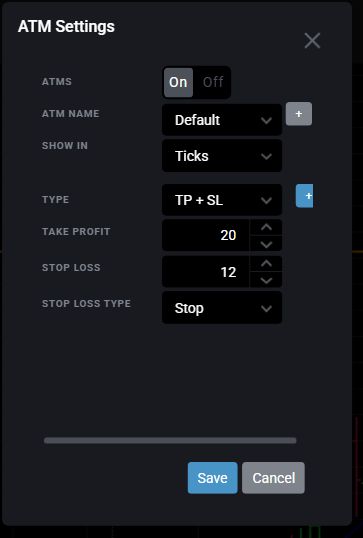
Set the Bracket Before Entry
An ATM bracket can automatically submit the protective stop after the entry fills, reducing the time a new position remains unprotected.

This screenshot was captured from Tradovate's current web interface using a demo account. The values shown are examples only, not suggested settings.
An ATM bracket can automatically submit the protective stop after the entry fills, reducing the time a new position remains unprotected.
Do not assume the stop exists just because an ATM was selected. Confirm the stop's account, contract, side, quantity, price, and Working status after the entry fills.
A stop order prioritizes exiting but can slip. A stop-limit controls the acceptable price but can fail to fill and leave the position open.
The order type changes what happens after the trigger. The best choice depends on whether the trader prioritizes exit certainty, price control, or an automatically adjusting stop. None eliminates execution risk.
For protective exits, a stop order generally favors execution over exact price, while a stop-limit favors price control over execution certainty. Always verify the working order and understand the selected type before trading.
Watch a recorded TradeReign rule-enforcement example. Tradovate places the stop; TradeReign reacts to configured violations. Connectivity, brief exposure and execution delays remain possible. This demonstrates stop protection, not a guaranteed fill or daily-loss-limit example.
Open the chart or DOM for the intended contract and account. Open the ATM or bracket configuration, create or select a saved configuration, and choose either Stop Loss Only or Take Profit and Stop Loss.
Set the bracket quantity and the stop-loss distance or price parameters. Choose the intended stop type, save the configuration, and select it from the ATM dropdown so the ATM is on before submitting the entry.
When the entry fills, inspect the chart, DOM, or Orders module and verify that the protective stop is Working. Confirm that the order is on the correct account and contract, uses the closing side for the position, and covers the intended quantity.
Tradovate requires Trade Mode to be enabled in the chart settings before orders can be managed from the chart. On the chart, select the price where the protective stop should work, choose the appropriate stop order type, and review the confirmation before submitting it.
For a long position, the protective stop normally closes by selling below the market. For a short position, it normally closes by buying above the market. Confirm the side rather than relying only on the stop's visual position.
After submitting, verify that the order appears as Working. Tradovate also allows a working chart order to be moved by dragging it to a new price and confirming the change, but moving a protective stop farther from entry increases the trade's risk.
Tradovate documents an OCO-one-time workflow in the DOM for an existing position. Select OCO-one time from the ATM dropdown, then place the profit-target and stop-loss orders in sequence. If the sequence is interrupted by clicking elsewhere, Tradovate says the OCO creation process must be restarted.
OCO means one cancels the other. When either the stop or target fills, the linked order is intended to cancel. Still verify both orders, their quantities, and their OCO relationship rather than assuming they were linked correctly.
This page explains platform operation, not where any individual trader should place a stop. Stop location depends on the instrument, volatility, strategy, entry, account constraints, and the amount the trader has decided to risk.
Before entering, calculate the dollar risk created by the stop distance and position size. A technically reasonable price level can still create excessive account risk when too many contracts are used.
Tradovate states that a stop order becomes a market order after its stop price is reached. It then seeks the next available price, so the completed fill may be worse than the stop price in a fast or thin market.
A stop-limit order changes that tradeoff by restricting the acceptable fill price. That can reduce price slippage, but it also creates non-execution risk: the market can move beyond the limit while the position remains open.
Common mistakes include selecting the wrong account or contract, using the wrong closing side, covering fewer contracts than the open position, forgetting to turn the ATM on, assuming a stop was submitted without checking Working status, and confusing a stop order with a stop-limit order.
Group Trade requires special care. Tradovate states that bracket or ATM orders are not available through its Group Trade workflow, although stop and limit orders can be entered manually for the group accounts.
TradeReign does not choose or place the original stop for the trader. The stop is created through Tradovate or another supported trading workflow. TradeReign can then monitor the rules the trader configured around that position.
Stop Enforcement can require an open position to receive a protective stop within the configured grace period. Stop Protection can respond when an existing stop is moved farther from entry or otherwise loosened after it should be protected. Exact behavior depends on the enabled settings.
This distinction matters: placing a stop is the first step, while maintaining the intended risk after the trade becomes emotional is a separate discipline problem.
TradeReign is an independent software product and is not affiliated with, endorsed by, or sponsored by Tradovate.
Tradovate names and interface references are used only to explain compatible workflows. Platform labels and behavior can change, so confirm current order details and account requirements directly with Tradovate or the applicable provider.
Platform details on this page were checked against these official resources.
Understand why traders widen or remove stops after entry and how that changes the original risk.
Learn how predefined stop-protection rules can make post-entry stop widening harder.
Connect stop distance and contract quantity to the total dollar risk of the position.
Place protective stops inside a broader system of position, session, and behavior rules.
Before entering, open the ATM or bracket configuration from the chart or DOM, choose Stop Loss Only or Take Profit and Stop Loss, configure the quantity and stop distance, save the setup, and turn the ATM on. You can also place a stop directly from a chart by enabling Trade Mode, selecting the intended stop price, choosing a stop order type, and confirming the order.
Yes. Tradovate documents placing a stop order directly from the chart at the intended price. For an existing position in the DOM, its OCO-one-time workflow can link a stop loss and take-profit order. Always verify the order side, quantity, account, contract, price, and Working status.
A stop order becomes a market order after its stop price is reached, so it prioritizes getting out but may fill at a worse price. A stop-limit order adds a limit price, which controls the acceptable fill price but creates the risk that the position will not exit if the market moves through that range.
No. Tradovate states that a stop order does not guarantee execution at its stop price. Once triggered it is treated as a market order, and slippage can occur. Stop-limit orders control price differently but can remain unfilled.
Tradovate says working orders can be modified on the chart by dragging the order to a new price on the price axis and confirming the modification. Moving a protective stop farther from entry increases the trade's risk.
An ATM bracket is a saved order-management configuration that can submit a stop loss, a take-profit order, or both in connection with an entry. When a stop and target are linked as OCO orders, filling one is intended to cancel the other.
No. The trader places and configures the stop through Tradovate or another supported workflow. TradeReign can then monitor configured stop requirements and stop movement, depending on the rules the trader enables.
TradeReign can monitor required-stop and stop-protection rules after you place the original stop through a supported Tradovate workflow.
Futures trading contains substantial risk and is not suitable for every investor. TradeReign is a trading-discipline and rule-enforcement application. It does not provide trading advice, trade signals, investment recommendations, or performance guarantees.
TradeReign is not a broker-dealer, futures commission merchant, or investment advisor.
Futures trading contains substantial risk and is not for every investor. An investor could potentially lose all or more than the initial investment. Only risk capital - money that can be lost without jeopardizing financial security or lifestyle - should be used for trading. Past performance is not necessarily indicative of future results.